
The usage header
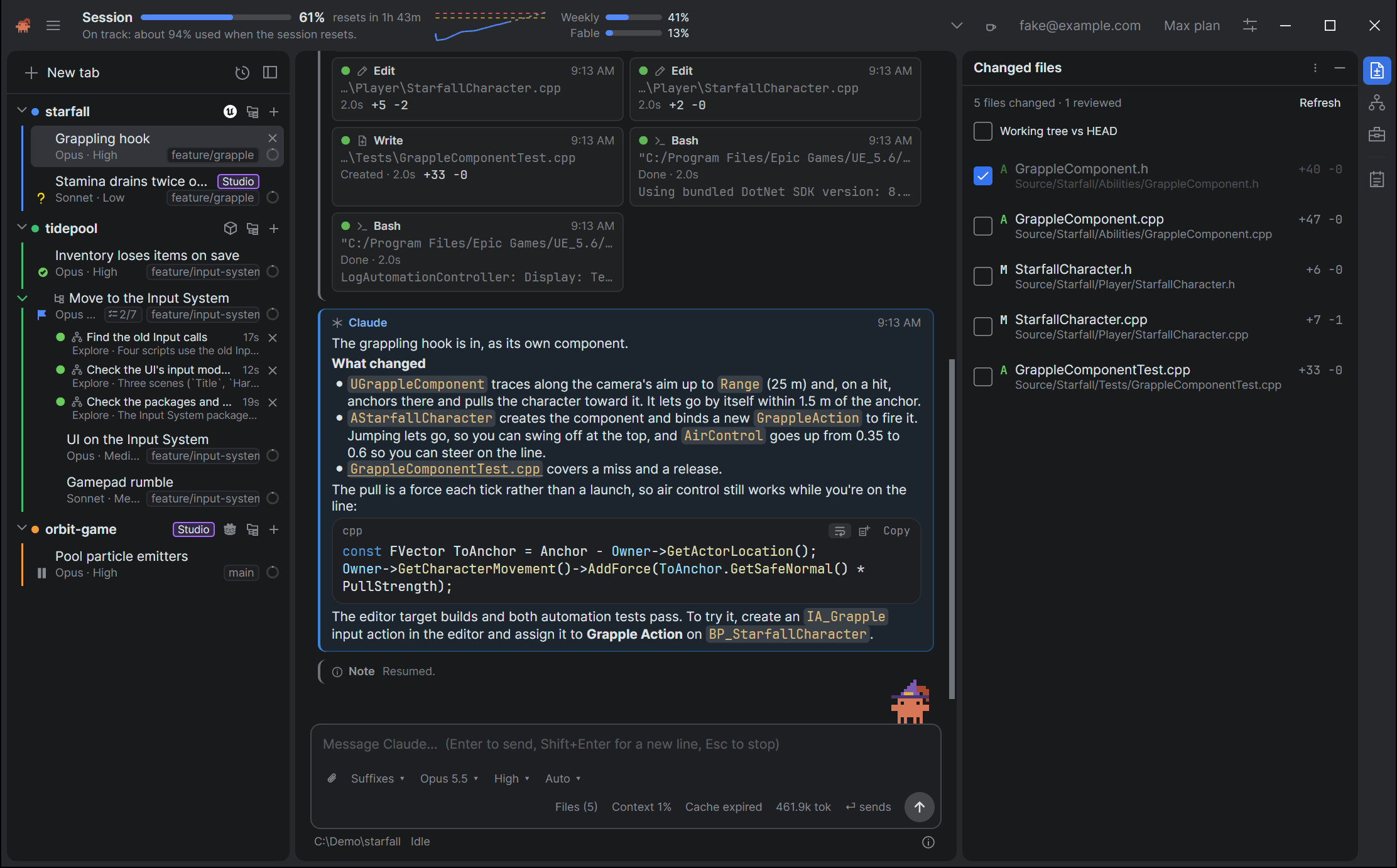
The strip across the top of the window shows how much of your plan’s limits you’ve used, how fast you’re using them, and when you’ll hit the limit at that rate. It’s there whichever tab is selected, and it keeps up even when no tab is working.
What’s in it
- Session is the most prominent meter: a bar, the percent used, and a countdown such as resets in 2h 14m. A session is a 5-hour window. Hover over it for the clock time it resets.
- The trendline is a small chart beside it of this window’s usage so far. A dotted line carries the current rate forward to show where the window is heading, and faint dashed lines mark the warning and alert levels.
- The line under the session meter says in words where that’s heading. See below.
- Weekly meters are smaller and stacked, with the limit across all models on top. Each shows its percent and when it resets (resets Thu 9:00 AM). Hover over one for the full reset time.
- Model meters sit under Weekly: one for each weekly limit your plan has for a particular model, named for the model.
Compact
Turn on Compact usage header (Settings → Usage) and the meters take one line at the left of the header, each a short name, a small bar and its percent: S 61% W 41% F 13%. S is the session, W the weekly limit across all models, and a model’s meter has its first letter, or as many as it takes to tell it from the others (So for Sonnet). Hover over a meter for its full name and when it resets.
The countdown, the trendline and the line under the session meter are left out. Clicking the meters still opens the Usage window, and the chevron after them still opens the detailed header.
In a narrow window
When the window is too narrow for everything, the header makes room for the session’s meter rather than cut it off, in this order:
- The trendline goes, then the session’s countdown.
- At the header’s right, your plan and the processes’ totals go, and your email becomes an icon, which opens the same account menu. The menu still has your plan’s usage, and the Processes window the totals.
- The weekly meters go.
- The session’s bar gets shorter, and in the narrowest window the word Session goes too, its bar and percent staying.
The line under the session’s meter is shortened to fit, with the whole of it in its tooltip. Widen the window and everything comes back in the same order. Hover over the session’s meter for when it resets, or click the meters for the Usage window.
The compact header leaves out its weekly meters first in the same way, keeping S.
Colors and warning levels
A meter turns amber at the warning level, 75% by default, and red at the alert level, 90% by default. The percent beside it takes the color too. The same two levels apply to every meter, and to the alerts.
The line under the session meter
It’s one of these:
- At this rate you’ll hit the limit in 1h 05m, 1h 09m before it resets. In amber or red. At the pace of the last half hour, you’d reach 100% before the window resets.
- On track: about 70% used when the session resets. At that pace, you’d get through the window.
- No recent usage. Nothing has been used lately, so there’s no pace to project. Claudette says so instead of carrying on a stale rate.
- Not enough data yet. Claudette needs a few minutes of readings to measure a pace.
- You’ve hit the limit. See When a limit stops a task.
The pace is measured over the last 30 minutes by default, so one big turn doesn’t swing the projection. Change the window with Burn rate window (minutes).
When usage credits pay
If your plan has usage credits, they pay for Claude once a limit is used up, up to the cap set on claude.ai. While they do, a notice runs across the window straight under the header:
Using usage credits. Your session limit is used up, so your usage credits pay for Claude until it resets at 15:45. $12.40 of $50.00 spent this month.
- It names the limit that’s used up (the session, the week or a model’s) and when it resets, then what’s been spent this month, against your cap when the account has one of its own.
- Manage on claude.ai opens your plan’s usage on claude.ai, where you turn usage credits off or change the cap.
- It has no Dismiss. It goes by itself when credits stop paying: the limit resets, credits are turned off or reach the cap, or Claude Code says they aren’t paying.
- It shows whichever tab is selected, one on an API-key account too, since your plan’s other tabs are still spending them, apart from those that don’t use them.
- Just after Claudette starts, it waits for the first reading or the next turn.
An OS notification tells you when credits start paying: see Alerts.
Model meters
Show model-specific weekly limits (Settings → Usage, on by default) shows the model meters. Claude Code reports them. If a version of Claude Code stops reporting them, the model meters go away and the rest of the header carries on, unless If Claude Code stops reporting them, read them from /usage is on. Then Claudette reads the text Claude Code prints for /usage instead. That costs nothing, but it can break when Claude Code changes the wording, so it’s off by default.
How current the numbers are
Claudette reads your usage when it starts, after each turn (at most once a minute) and every 5 minutes otherwise, and the meters also move as your tabs work. When the numbers are more than 10 minutes old, for example just after launch before the first reading, the header adds as of 14:02 beside the line under the session meter.
Within one window a meter only goes up. A reading lower than the one shown, for the same window, is out of date, so Claudette keeps the higher one.
When there are no meters
A sign-in with no plan limits, such as an API key, has no meters, and the header just says Claudette. If Claudette can’t start tracking usage, the header says Usage unavailable and why, and your tabs keep working.
Opening the details
Click anywhere on the meters to open the Usage window. The chevron just after them draws the header taller, with charts: see The detailed header.
Settings
All in Settings → Usage.
| Setting | Default |
|---|---|
| Warn at (% of the session used) | 75 |
| Alert at (% of the session used) | 90 |
| Burn rate window (minutes) | 30 (from 5 to 300) |
| Compact usage header | Off |
| Show model-specific weekly limits | On |
| If Claude Code stops reporting them, read them from /usage | Off |
See also
- The detailed header for the charts.
- Your Claude sign-in for the plan beside your email, which opens your plan’s usage on claude.ai.