
A tour of the window
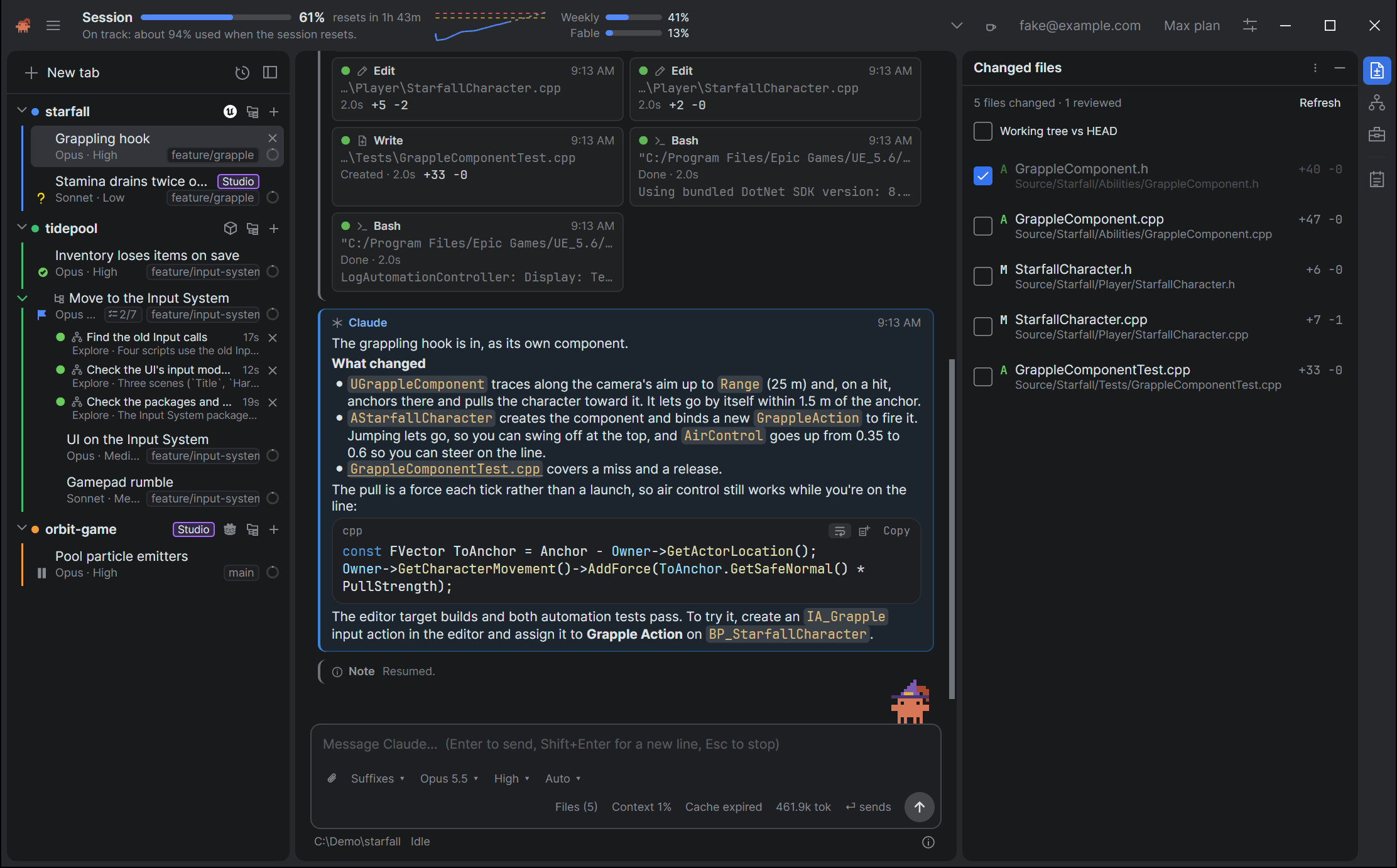
The window has five parts: the usage header across the top, the sidebar on the left, the conversation in the middle, the tool windows on the right and the composer under the conversation. This page names each part and says where to read more.
The header
The header is always visible, and it’s the window’s title bar: drag its gaps to move the window, and double-click them to maximize it. From left to right it shows:
- Claudette’s logo, which on Windows is the window’s icon: click it for the window menu (Restore, Minimize, Maximize, Close and so on), or double-click it to close the window. Then the menu, three lines: User Guide, which opens this guide in your browser, then Ask on Discord, Report an issue (Reporting an issue) and About Claudette (About).
- The usage meters. Your session (5-hour) usage is the most prominent, with the weekly limit and each model’s own limit beside it, their reset countdowns, and a short trend that says whether you’ll reach the limit. The chevron at its right opens the header up into charts. See The usage header.
- The processes’ total, when the process monitor is on: the CPU and memory of every tab’s processes. See Processes.
- The cup, which keeps the computer awake while it steams. See Keeping the computer awake.
- A colored dot, which shows whether Claude itself is having trouble. See Claude is having problems.
- Your account and its plan. See Your Claude sign-in.
- Settings, its icon, before the window’s buttons: see The Settings window.
- On a Mac the traffic lights are at the header’s left, before the logo. To have your system’s title bar over the header instead, turn on Settings → Appearance → Use the system’s title bar; Linux always has it. See Windows, macOS and Linux.
A banner can run across the top, under the header: Claude’s service status when there’s an incident, Claude Code needs you to sign in., or a usage alert. Each has a button to deal with it or Dismiss.
The sidebar
The sidebar lists your tabs, one row each, grouped by working folder. A row shows a status icon (idle, working, needs your input, finished while you were away, or an error), the tab’s name, its model and effort, and its git branch, mark and context ring. See The sidebar, Folder groups and Icons and badges.
- New tab and History are at the top: see Your first tab and History.
- Each folder’s group has its project’s icon on its row, with its actions and links (Project tools).
- The foot shows only when there’s an update: its badges (Updates).
Ctrl/Cmd+Bcollapses the sidebar to a rail of status icons.Ctrl/Cmd+Jjumps to the next tab waiting for you, andCtrl/Cmd+Shift+Popens the command palette, which reaches everything else.
The conversation
The middle shows the selected tab’s conversation: your messages, Claude’s replies as Markdown with highlighted code, its tool calls, its thinking, and the questions it asks you. Permission prompts, questions and plans are cards with buttons, in the conversation itself. Read on in The conversation and Permissions and prompts.
Tool windows
The tool windows are on a strip of icons down the window’s right edge, as in JetBrains Rider. Click an icon to show its window beside the strip, and click it again to hide it. They show the tab you’re looking at.
| Window | What it shows | Where to read more |
|---|---|---|
| Changed files | The files this tab changed, with their diffs | Changed files |
| Agents | Claude’s subagents as a tree | The agent map |
| Project | The project’s tools, actions and their output, when the folder has any | Project tools |
| Processes | The tab’s processes, when the monitor is on | Processes |
| Tasks | Claude’s plan and task list, while it keeps one | The Tasks page |
| MCP | The session’s MCP servers, when it has any | MCP servers |
| Scratch pad | Your notes for the project | The scratch pad |
| Find | The searches you kept from Find in files, along the bottom | Finding in files |
Tool windows covers the strip’s groups, windows that hide when you click elsewhere, and moving and sizing them.
The composer
Under the conversation is the message box, with a bar above it and a status line under it. The bar holds the tab’s model, effort and permission mode, and its counts: processes, files changed, context and tokens, with Send (or Stop) at the right. The status line shows the working folder and the tab’s status, with Restart if it has stopped. See The composer and The composer bar.
Claudette herself, the pixel mascot, stands on the message box and reacts to what Claude is doing. See Claudette on the composer.
On macOS and Windows
- macOS: the menu bar has Settings… in the app menu, File with New Tab, Open Recent, History… and Close Tab, and Help with User Guide, Ask on Discord and Report an Issue. The Dock icon’s menu lists your recent folders, and its badge counts the tabs that need you.
- Windows: the taskbar button’s jump list lists your recent folders, and an overlay on the button counts the tabs that need you.
See Notifications for the rest of what Claudette does to get your attention.